Follow These steps and you will insert to a database
1 First all right click on your project
as shown below


then add new item
step 3 click add new item and select Service based database i called mine blogger.mdf

step 4 click add and wait for the system to create after creation
double click on the database
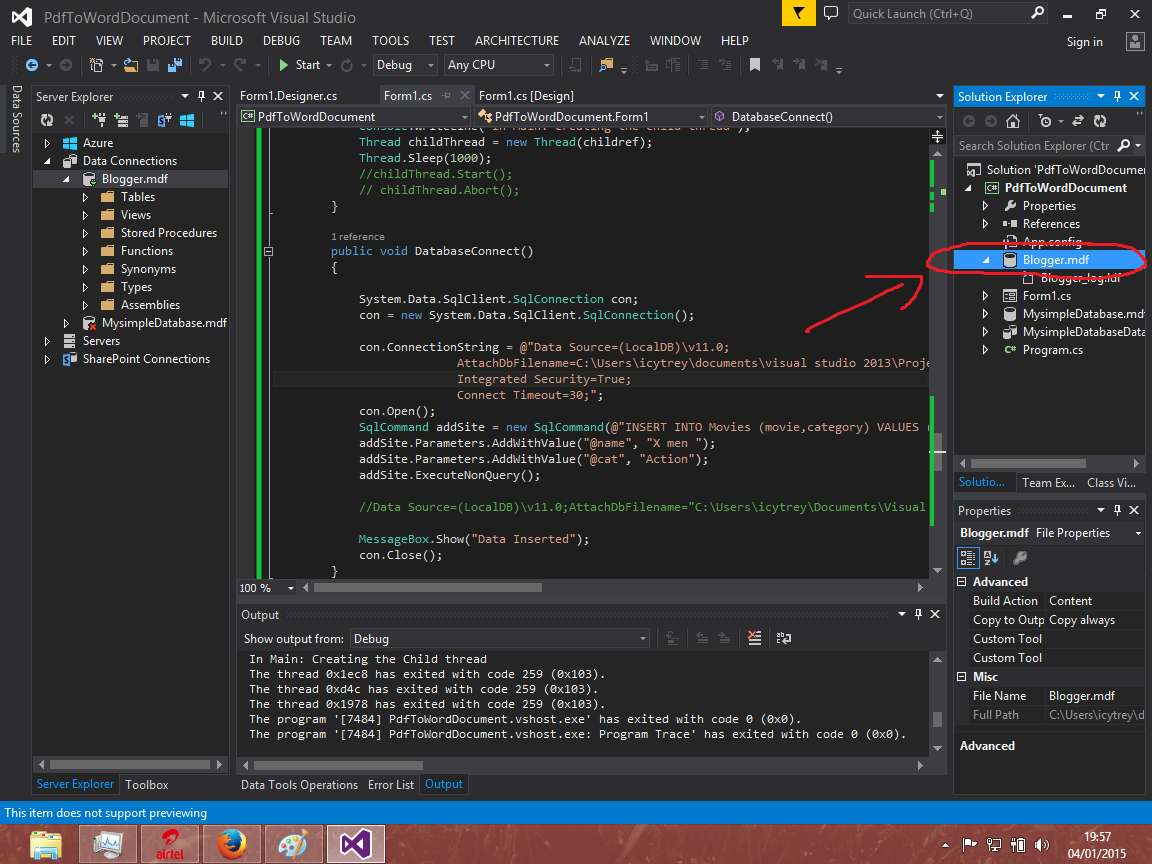
as shown below
then right click on the as shown below and choose modify

step 5 you will see this

and locate your database
after this
This is where we all get it wrong the data source is not always .\SQLEXPRESS as most tutorials give
click advanced and you will be greeted with all the information you are going to need to connect to the database
con.ConnectionString = @"Data Source=(LocalDB)\v11.0;
AttachDbFilename=C:\Users\icytrey\documents\visual studio 2013\Projects\PdfToWordDocument\PdfToWordDocument\MysimpleDatabase.mdf;
Integrated Security=True;
Connect Timeout=30;";
note AttachDbFilename locate your database.mdf file in the path

then you are almost done
here is the complete code
System.Data.SqlClient.SqlConnection con;
con = new System.Data.SqlClient.SqlConnection();
con.ConnectionString = @"Data Source=(LocalDB)\v11.0;
AttachDbFilename=C:\Users\icytrey\documents\visual studio 2013\Projects\PdfToWordDocument\PdfToWordDocument\MysimpleDatabase.mdf;
Integrated Security=True;
Connect Timeout=30;";
con.Open();
SqlCommand addSite = new SqlCommand(@"INSERT INTO Movies (movie,category) VALUES (@name,@cat)", con);
addSite.Parameters.AddWithValue("@name", "X men ");
addSite.Parameters.AddWithValue("@cat", "Action");
addSite.ExecuteNonQuery();
//Data Source=(LocalDB)\v11.0;AttachDbFilename="C:\Users\icytrey\Documents\Visual Studio 2013\Projects\PdfToWordDocument\PdfToWordDocument\MysimpleDatabase.mdf";Integrated Security=True;Connect Timeout=30
MessageBox.Show("Data Inserted");
con.Close();
create the table by expanding the database right click on Tables as shown below

last step you will be greeted with this interface create the table and hit update icon
and you are done
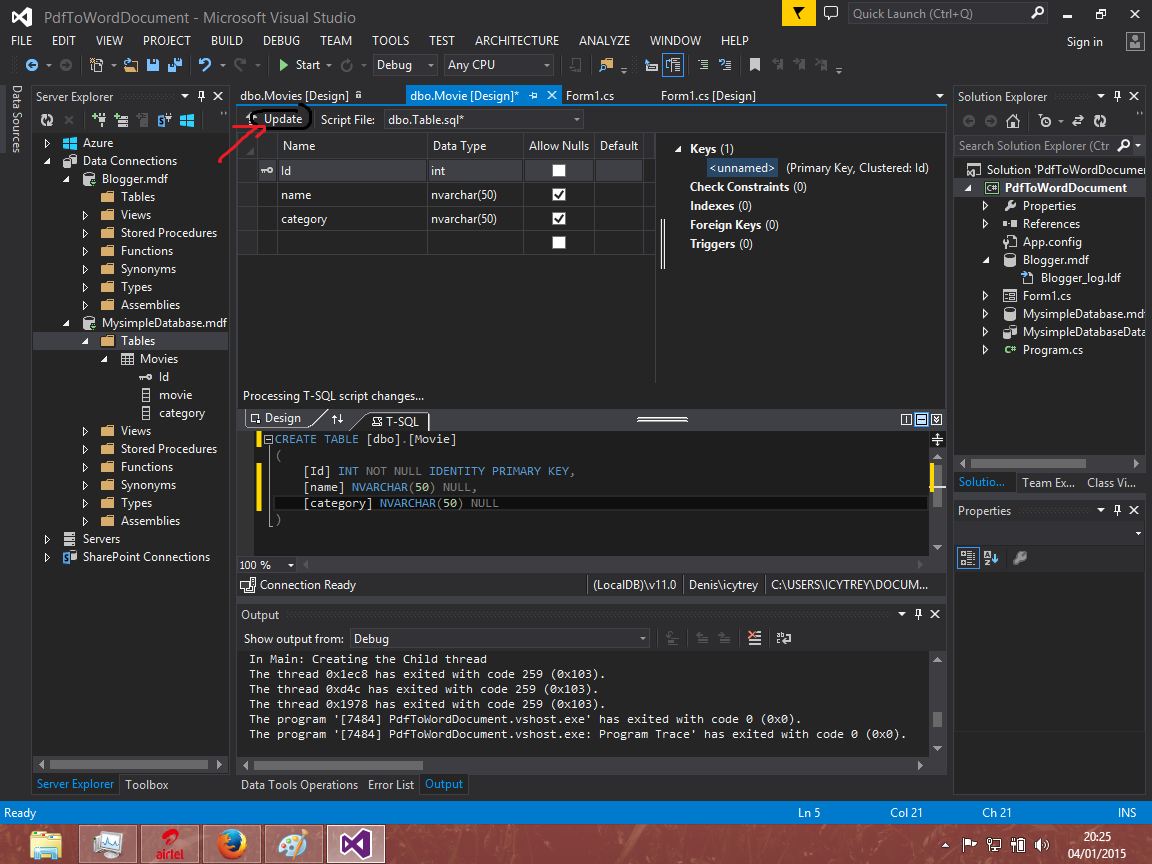
dont forget to make id IDENTITY PRIMARY KEY
thanks hope this helps you alot
